How to Add a Booking Widget to Your Charter or Rental Website
The gap between your website and a confirmed booking
Most charter and rental operators have a website. They invested real money in it, photos, a logo, maybe a little SEO. Guests land on the page, browse the trip options, and then hit the same wall: a phone number, a contact form, or a Facebook link.
That is where a lot of bookings die. Not because the guest did not want to book, but because calling back on a Tuesday morning when you are offshore is not going to happen, and filling out a contact form feels like guessing. The guest closes the tab and picks someone else with a cleaner path to checkout.
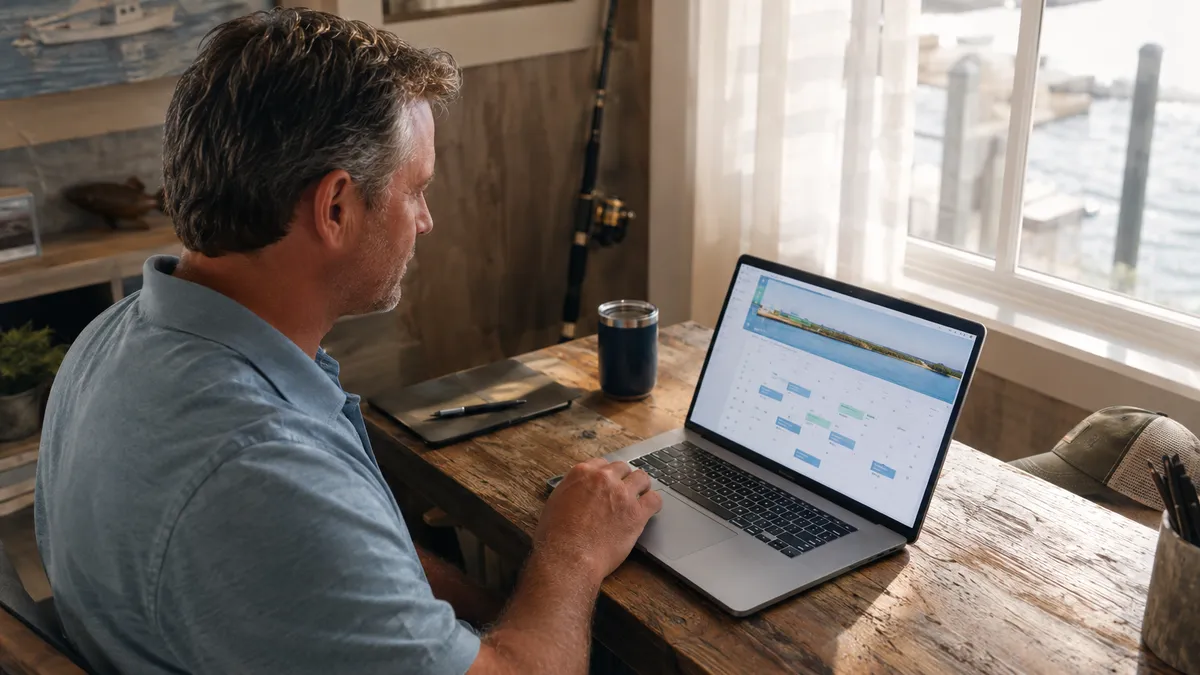
Embedding a booking widget on your website closes that gap. Visitors can see real availability, pick a date, choose a trip or time slot, and pay a deposit, all without waiting for anyone to respond. The booking lands in your dashboard, your calendar updates, and the guest gets a confirmation email with their waiver link attached.
This post walks through how that embed works, what to check before you go live, and where it fits into a website that already exists.
What a booking widget actually does
A booking widget is a small piece of embed code, usually a script tag or an iframe, that you paste into a page on your website. Once it is in, guests see a live booking interface without ever leaving your site. They are still on your domain, still seeing your branding, but the availability calendar, trip selection, guest count picker, and Stripe checkout are all running inside the widget.
From the operator side, nothing changes about how you manage your calendar. Bookings made through the widget show up in the same dashboard as bookings made through your direct link or any other source. There is no separate inbox to check, no manual entry, no reconciliation.
With VrixPlay, the embed code lives under Settings then Integrations. Copy it once and paste it into whatever page builder your site uses, Squarespace, Wix, Webflow, WordPress, or a raw HTML file. The widget pulls your live trip types, prices, and availability in real time.
Where to place the widget on your site
The placement question is worth thinking through before you paste the code. Most operators default to a dedicated Book Now page, which works, but it is not always the strongest setup.
Trips or services page. This is usually the best place. Guests are already reading about the trip they want. A booking widget right below the description means zero friction between interest and checkout. They do not have to navigate anywhere else.
Home page. A widget above the fold works well if your home page has a single clear offer. If you run multiple trip types, a home page widget can feel cluttered. A clean call-to-action button that scrolls to the widget usually reads better than dropping it into a hero section.
Dedicated booking page. A standalone page called Book a Trip or Reserve Your Spot is a useful destination for ads, email links, and social posts. Keep it simple, just the widget, a short intro, and your contact number for guests who need help.
If your site has trip-specific pages, one for the offshore charter, another for the sunset cruise, embed a filtered version of the widget on each so guests only see the relevant options.
Setting up the widget before you embed it
There are a handful of things to have in place before the widget goes live. Getting these right before you share the link saves you from fixing them after real guests have already seen the page.
Connect Stripe. The widget handles checkout, and checkout runs through Stripe Connect. Go to Settings, then Integrations, then Connect Stripe and complete the onboarding. Until Stripe is connected, card payments do not work. You can still manage bookings manually, but the widget cannot collect deposits at checkout.
Set up your trip types. Under Fleet, then your boat, then Products, make sure each trip type has a name, duration, price, max passengers, and deposit percentage. Inactive trip types are hidden from the public widget automatically, so you only need to worry about the ones you want available.
Set your booking lead time. Under Settings then Booking, you can configure how far in advance guests need to book. If you want at least 24 hours notice before any trip, set it there. It applies across all trip types and keeps guests from booking a morning trip the night before you are already committed elsewhere.
Choose charter mode or direct booking. Charter mode means a guest submits a request and you confirm manually. Direct booking means the guest pays the deposit and the booking is immediately confirmed. For fishing charters, most operators prefer charter mode so they can review each request. For watersports and rentals, direct booking tends to match guest expectations better and moves faster.
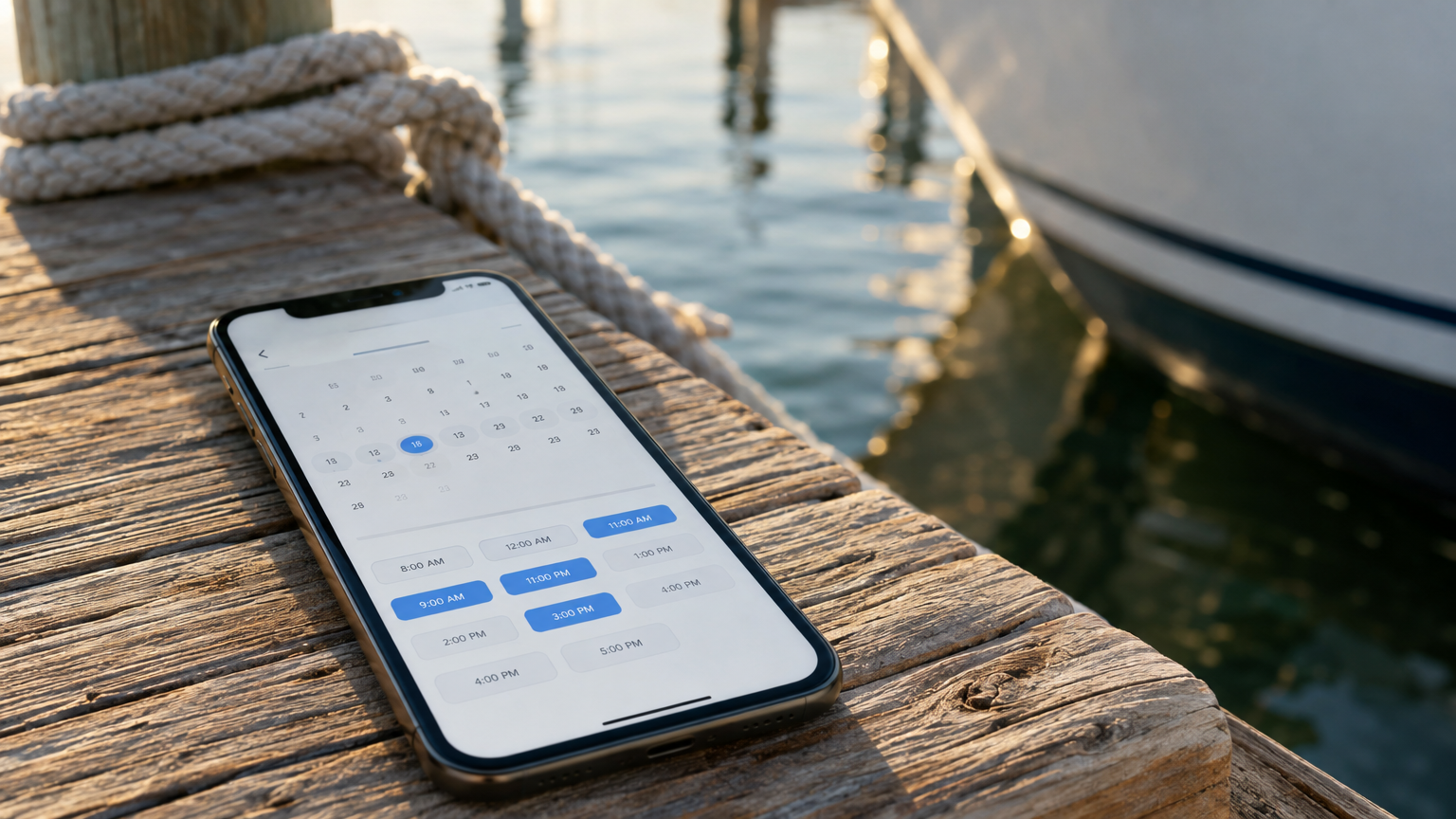
Test it from your phone. Go through the entire flow as a guest before you send anyone to the page. Pick a trip, choose a date, enter guest details, and run a test checkout. Most issues, wrong deposit amount, a trip type in the wrong order, a step that looks broken on mobile, show up immediately when you do this.
Booking widget vs. a direct link
VrixPlay also gives you a public booking link: a standalone page hosted by VrixPlay that you can share anywhere. The widget and the direct link pull from the same availability and use the same checkout. The main difference is context.
The direct link makes sense for text messages, Instagram bios, Google Business Profile, and anywhere else where a URL is all you can share. It takes guests to a clean, branded booking page that is functional and fast.
The embedded widget keeps guests on your website the whole time. That matters for first-time visitors who are still deciding whether to trust you. Your site, your photos, your branding, and the booking right there. No redirect, no loading a page that looks different from everything they just saw.
Most operators end up using both. The widget on the website, the direct link everywhere else. They point to the same system, so the calendar stays accurate regardless of where a booking comes in.
What guests see after they book
Once a guest completes checkout, VrixPlay sends an automatic confirmation email with the booking reference, trip details, the deposit amount paid, the remaining balance, and, if waivers are enabled, a link to sign before the trip. That email goes out without you doing anything.
If you have reminder emails configured under Settings then Notifications, a follow-up goes out automatically before the trip date. You can customize the messaging with placeholders for the guest name, date, boat name, and booking reference so each email reads like it came from you, not a form letter.
For your crew, booking notifications can go to assigned team members without requiring them to log into the app. They get an alert when a new booking comes in for their vessel and can check guest counts and manifest status from a phone.
Once the widget is live, do not set it and forget it
A booking widget running on your website does the heavy lifting, but a few habits keep it working cleanly over time.
Block maintenance windows early. If a boat is going into service for a week, add a maintenance block under Fleet before that date window opens to guests. Nothing is worse than a guest booking a trip on a day you already knew would not work.
Review your trip type lineup at the start of each season. If you added a sunset cruise last summer and do not plan to run it again, mark it inactive. If you adjusted pricing, update it under the trip type before the widget shows it to a new guest.
Check the embed periodically, especially after your website platform pushes an update. A quick visit to your booking page confirms everything is loading correctly.
Keep your Stripe connection healthy. If you disconnect Stripe or your account status changes, card checkout stops working. A quick check at the start of the season takes two minutes and saves real headaches.
Getting started
If you already have a VrixPlay account, the embed code is waiting for you under Settings then Integrations. If you are not on VrixPlay yet, setup takes about 15 minutes for a typical fishing charter or rental operation, and there is no monthly fee, just a flat 3% per booking.
The embed will not fix a website with no traffic. But for any operator whose site already sends visitors who cannot figure out how to actually book, it closes the loop in a way a phone number and a contact form never will.
